

01 / Film & storytelling
Move one idea into a complete story
Plan the shots, characters, and story arc before the video moves forward.
VISUALMAKERAI | IDEAS TO IMPACT
Create images, cinematic videos, and story-driven film projects with AI. From the first script to the final shot, bring your ideas to life.
Loading generator…
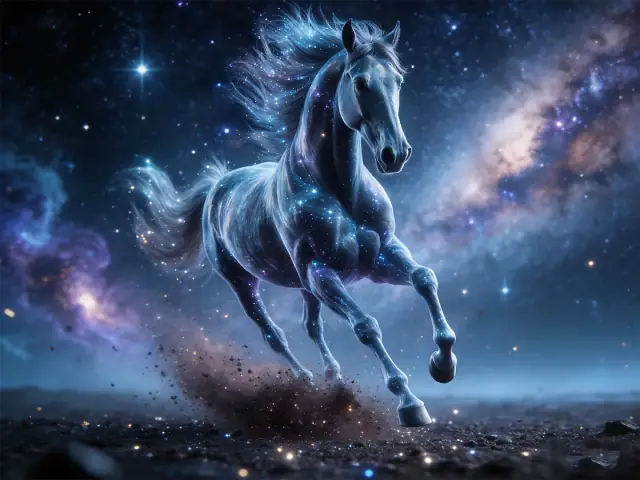
Create stunning images from text with state-of-the-art AI models.
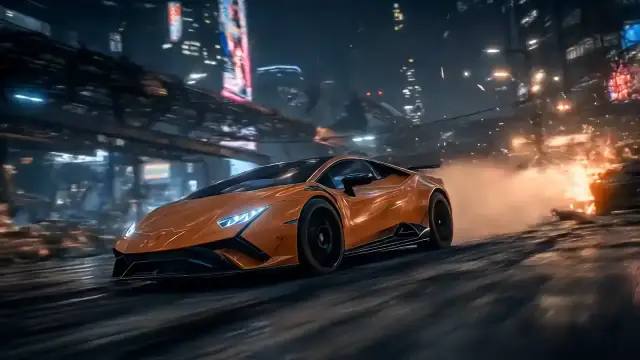
Turn your ideas into cinematic videos with AI.
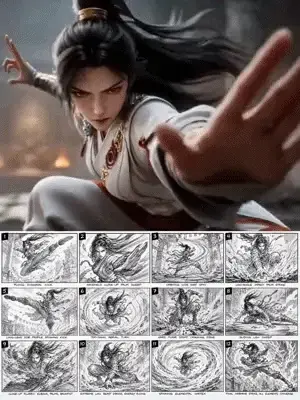
Turn scripts into scenes, keyframes, and video clips.
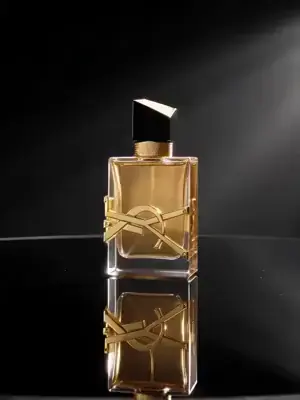
Build a story around your product, from hook to final shot.
One idea, many directions
From cinematic stories and brand campaigns to product demos and city films, see what image-to-video can become.
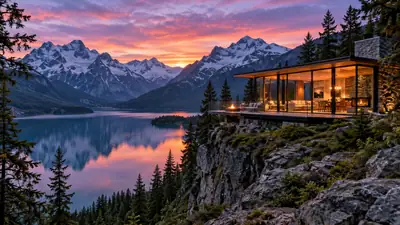
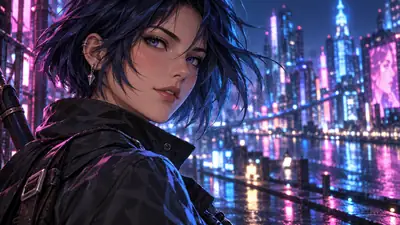
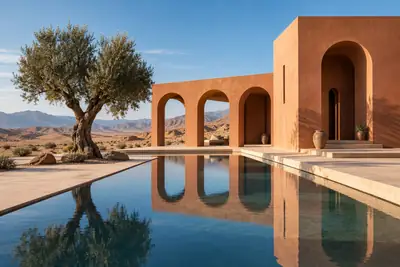
Plan the shots, characters, and story arc before the video moves forward.
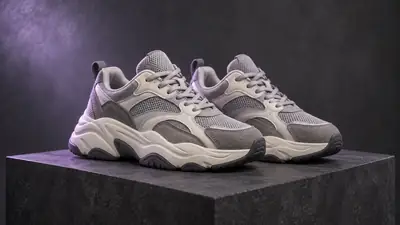
Move from a product showcase to a complete brand narrative.
Turn interfaces, data, and design assets into moving demonstrations.
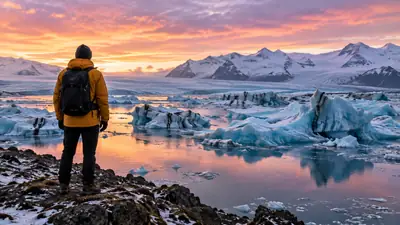
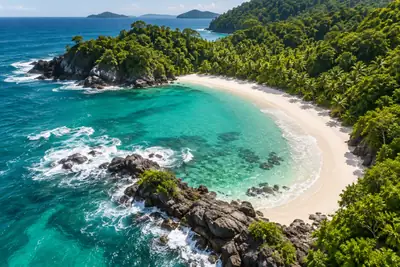
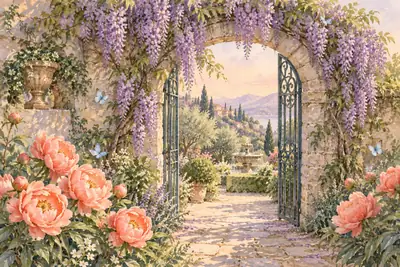
Nature, culture, and landmarks can all become the beginning of a story.
3
Veo 3.1, Seedance 2, and Kling 3.0 are available in the video workspace.
4
Image to video, text to video, first/last frame, and reference-led generation are supported across compatible models.
Flexible
Control aspect ratio, duration, resolution, and quality according to the selected model.
1
Generate, revisit history, download results, and reuse references without leaving the creation workspace.
Image-to-video controls
Start from one image, control how it moves, and choose the video model and output settings that match your creative goal.
Upload a JPEG, PNG, or WebP image as the visual foundation for the generated clip.
Choose Veo 3.1, Seedance 2, or Kling 3.0 according to the input and output options you need.
Describe camera movement, subject motion, pace, atmosphere, and the action that should unfold.
Adjust aspect ratio, duration, resolution, and quality using the controls supported by each model.
Image-to-video examples
Use one source image to create motion for products, portraits, social posts, and visual concepts.
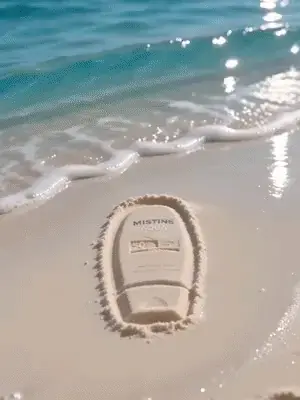
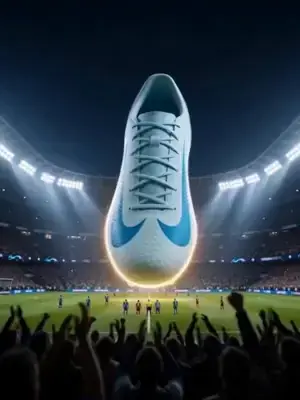
Prepare more dynamic visuals for launches, paid campaigns, and landing page creative.
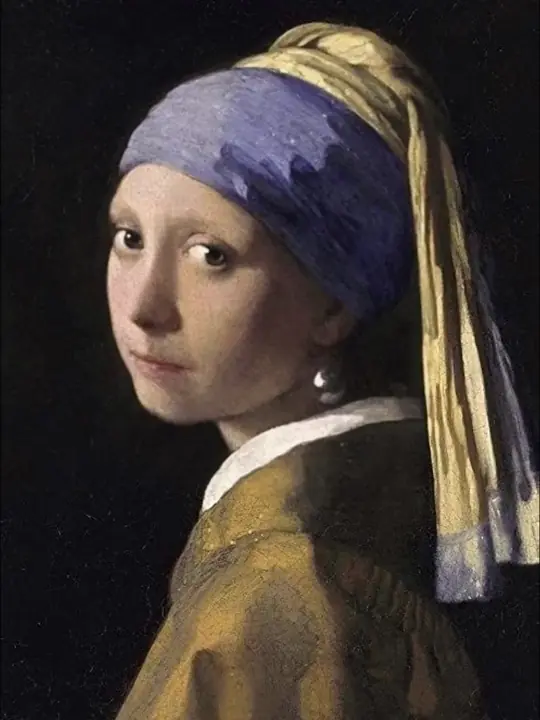
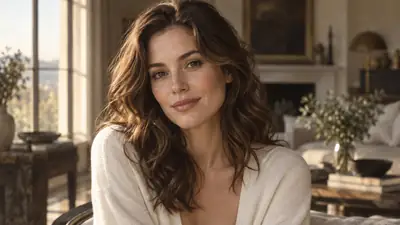
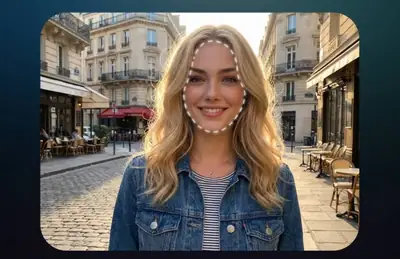
Turn people, hosts, or brand faces into visuals that work for covers, intros, and short-form content.
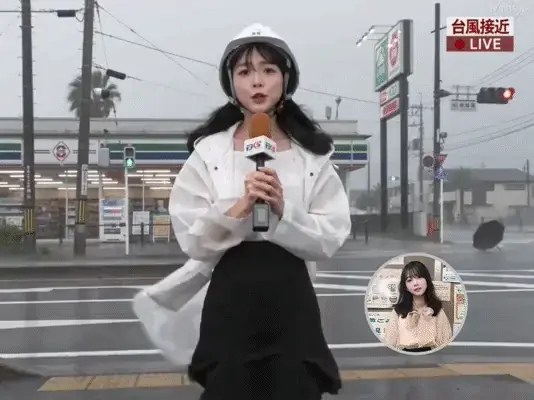
Test short-form directions with more tension, story, motion, or a stronger opening hook.
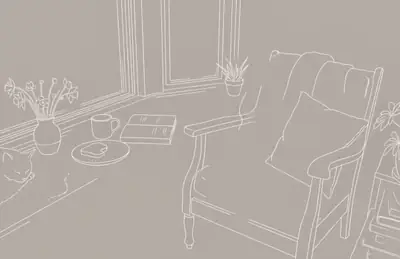
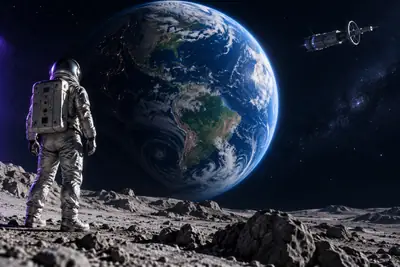
Use a concept frame or storyboard image as the visual anchor for a short moving scene.
NEW TOOLS
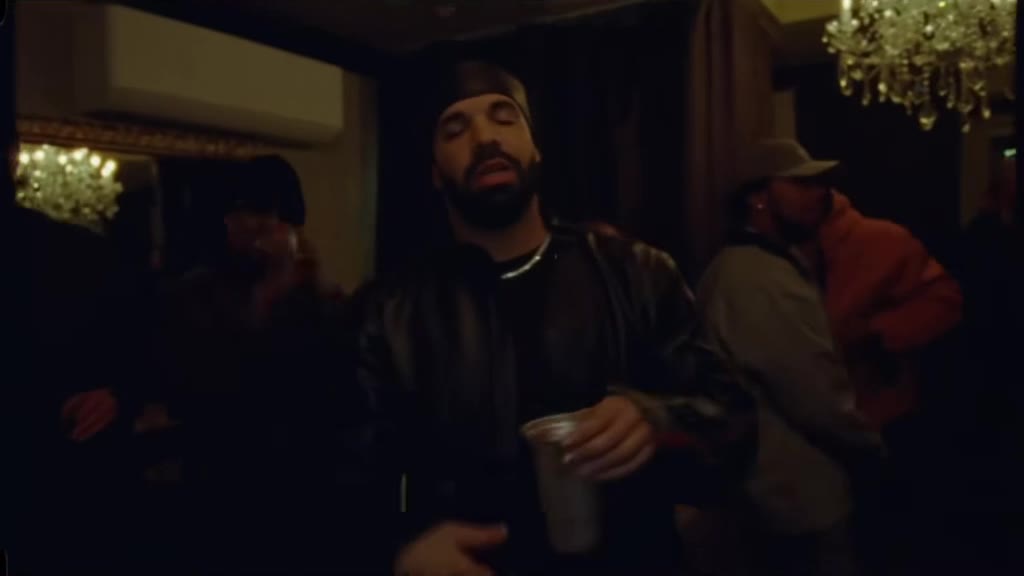
Step into the party from one photo and a video reference.
Explore tool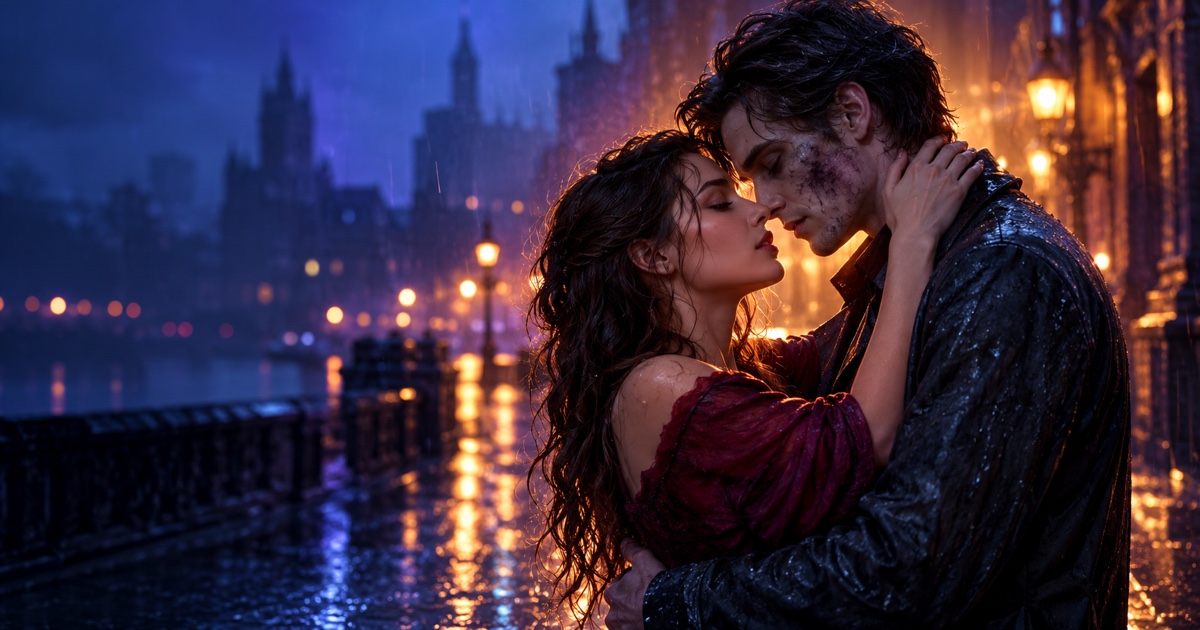
Create a 15-second zombie love story from two photos.
Explore tool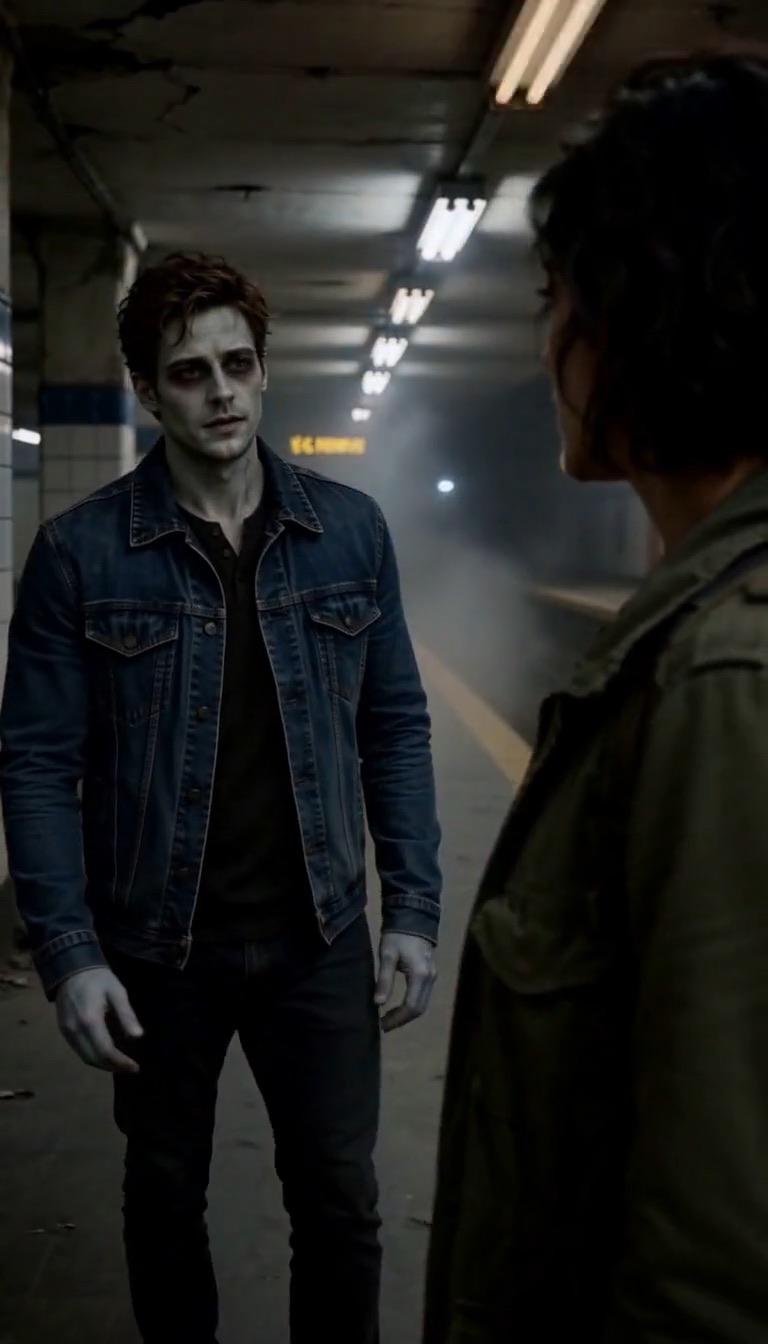
Turn two portraits into a short zombie story with ready-to-use scene prompts.
Explore tool
Upload a photo, get caption ideas, and download a finished meme.
Explore toolHow it works
The image-to-video workflow stays focused: provide the visual starting point, describe the movement, then select the output controls before generating.
Upload a clear JPEG, PNG, or WebP image that establishes the subject, composition, and visual style for the clip.
Write a motion prompt for the subject, camera, atmosphere, timing, or action you want the model to create.
Choose a compatible model, aspect ratio, duration, resolution, and quality, then start the video generation job.
Creation options
Image-to-video is the primary workflow, with text-to-video and still-image tools available when a project needs a different starting point.
Describe the subject, scene, lighting, and style in natural language to create the first visual direction fast.
Use an existing image as the reference, then change material, background, style, or commercial polish.
Define a shot, motion, and atmosphere in a short script, then generate a clip for campaigns or social posts.
Extend product images, portraits, or concepts into moving clips for ads, demos, and social content.
Image-to-video workflow
The primary workflow animates a source image; still-image generation remains available as a supporting tool for creating or refining that source asset.
Upload an existing product photo, portrait, illustration, or concept frame, then guide the motion with a prompt and model-specific controls.
Create still visuals for commerce, social posts, campaigns, concepts, and brand assets. Start with a prompt or reference image, then iterate with the model that fits the job.
AI video models
Each video model supports a different combination of input modes and output controls. Choose the model inside the generator after you upload your image.
Supports image-to-video plus additional reference-led modes, with 720p, 1080p, and 4K options depending on the selected quality and duration.
Model
Image and reference inputs
Output
Multiple resolutions and qualities
Supports image-to-video across square, landscape, portrait, and cinematic aspect ratios, with flexible short-video durations.
Model
Image-to-video workflow
Output
Broad aspect-ratio control
Supports image-to-video generation with model-specific motion, duration, quality, and output controls in the same workspace.
Model
Image-to-video workflow
Output
Short motion assets
Prompt inspiration
The current gallery becomes a focused prompt destination. New visitors see the product story on the homepage, while returning users can jump straight into examples.
Open prompt gallery
Text prompts
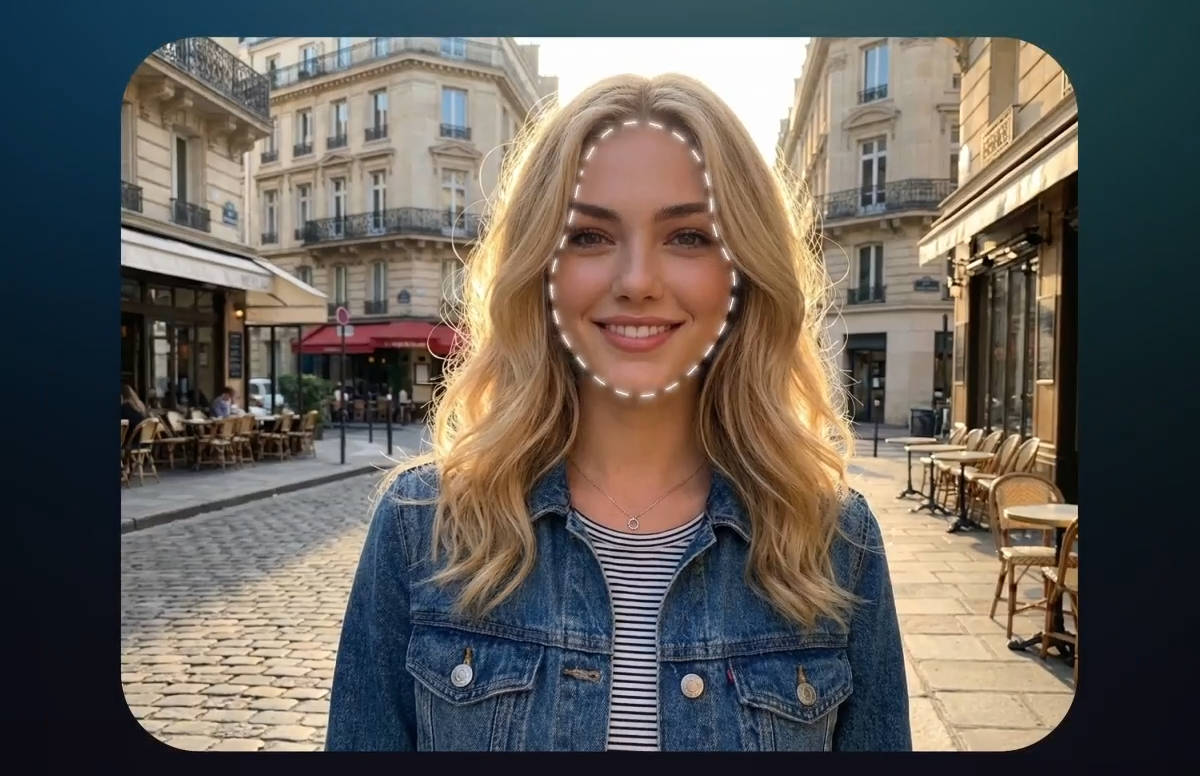
Precise edits

Image to video
Deliverable types
Concrete output types connect the feature story to real creative needs visitors can recognize immediately.
Turn a single prompt into a complete visual direction for fast concept exploration.
Keep the structure and subject from a reference while changing style, details, and commercial polish.
Prepare more engaging motion assets for launches, ad tests, and social campaigns.
Extend existing images into short clips so products, scenes, and stories can move.
Use cases
Image-to-video AI helps teams turn existing visual assets into motion without starting every clip from a blank timeline.
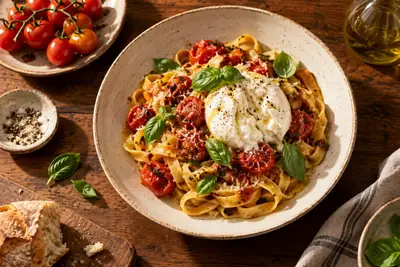
Generate product photos, campaign visuals, lifestyle scenes, and motion ideas from a small set of assets.
Create repeatable visual formats for daily posts, thumbnails, moodboards, and short clips.
Test more angles for launches, ads, emails, landing pages, and social campaigns without waiting on a production cycle.
Turn prompts and references into eye-catching visuals for reels, shorts, stories, and paid creative.
Frequently asked questions
Practical answers about turning still images into AI videos with Visual Maker AI.
An image-to-video AI generator turns a still image into a moving video. The source image establishes the subject and composition, while a motion prompt tells the model how the camera, subject, or scene should move.
Upload a JPEG, PNG, or WebP image, switch to Image to video, describe the motion you want, choose a video model and output settings, then start the generation job.
The image-to-video uploader accepts JPEG, PNG, and WebP files. A clear source image with a distinct subject generally gives the model a stronger visual starting point.
Visual Maker AI currently provides Veo 3.1, Seedance 2, and Kling 3.0. Available input modes, aspect ratios, resolution, quality, and duration vary by model.
Visual Maker AI uses credits for video generation. The displayed cost updates with the selected model, input mode, quality, resolution, and duration before you start a job.
Upload a source image, describe the motion, and create a video with the model and output settings that fit your next campaign or post.