Sign in
Visual Maker AI

Image to Video Prompts: 6 Examples with Sample Videos

Explore six image-to-video examples with input images, playable sample videos and copyable source prompts. See camera tracking, character motion and animated illustrations.

Start creating

Image-to-video prompts with original images and sample videos

A couple moving through flowers

Input image
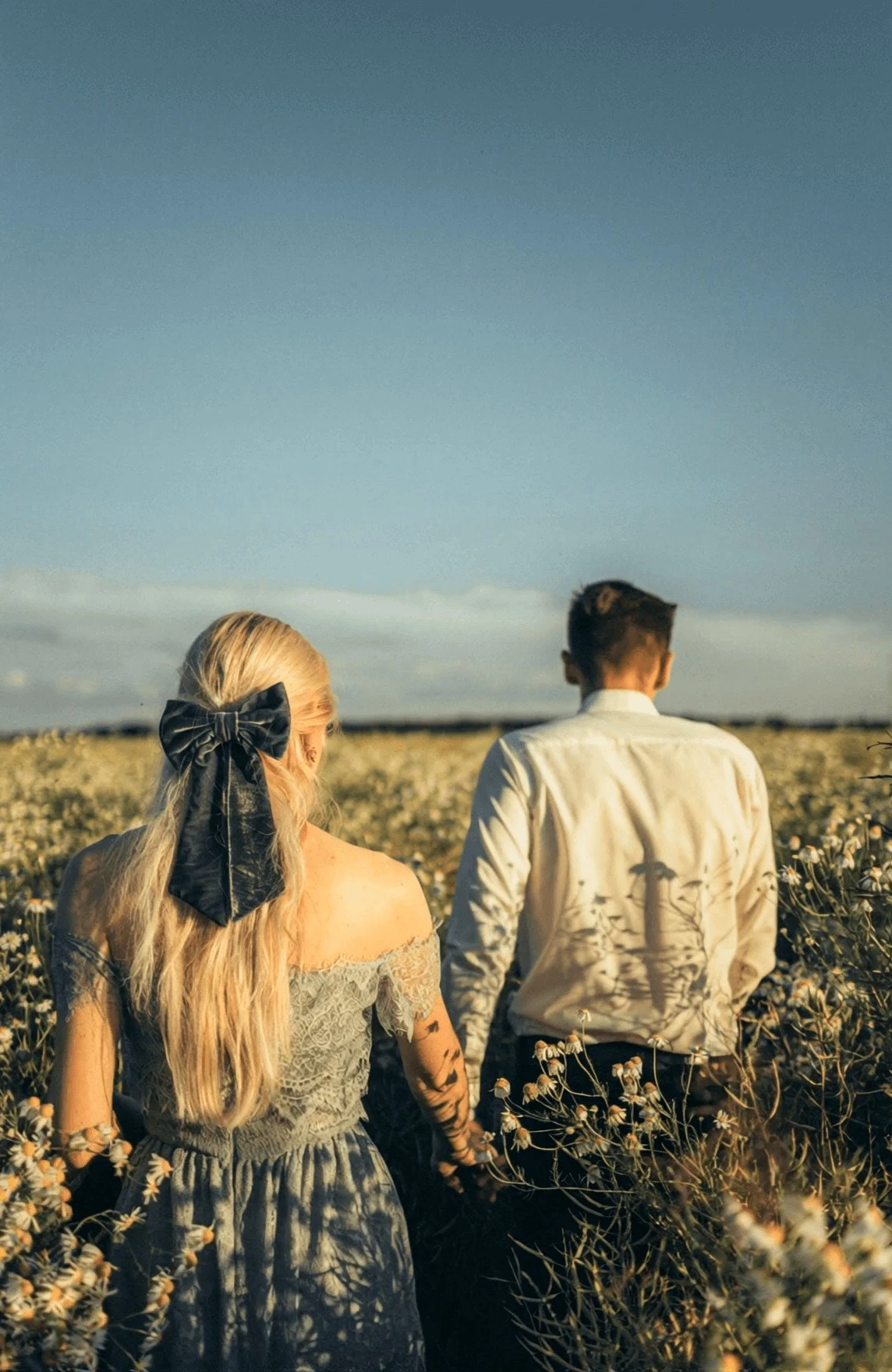
Starting frame for a couple moving through flowers

Sample video

Reference from DeeVid AI · Source model: Not disclosed by source. This sample was produced by the source; results in Visual Maker AI will differ.

Upload a photo of two people in an open setting, with enough room for their arms and movement.

A couple playing hand in hand in the sea of flowers.

Try a variation: Try a slower walk before adding a camera move.

Starting setup: Wan 3.0 Video · 9:16. Check resolution, duration and the credit quote in Generate.

Use this prompt
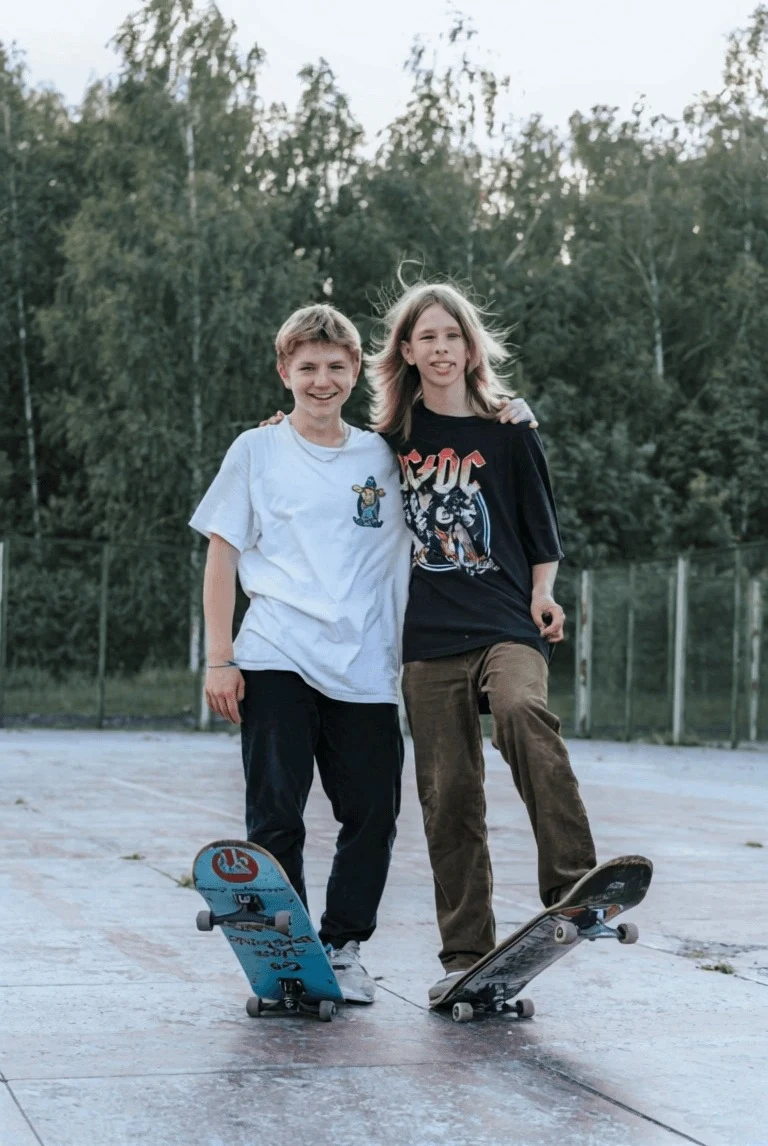
Two-person high five

Input image

Starting frame for two-person high five

Sample video

Reference from DeeVid AI · Source model: Not disclosed by source. This sample was produced by the source; results in Visual Maker AI will differ. The source presents high-five and hug alternatives; this is its first listed prompt.

Use a clear image of two people with visible hands and space between them.

The two people in the picture high-fived to congratulate.

Try a variation: Keep the camera still while testing the hand interaction.

Starting setup: Wan 3.0 Video · 9:16. Check resolution, duration and the credit quote in Generate.

Use this prompt
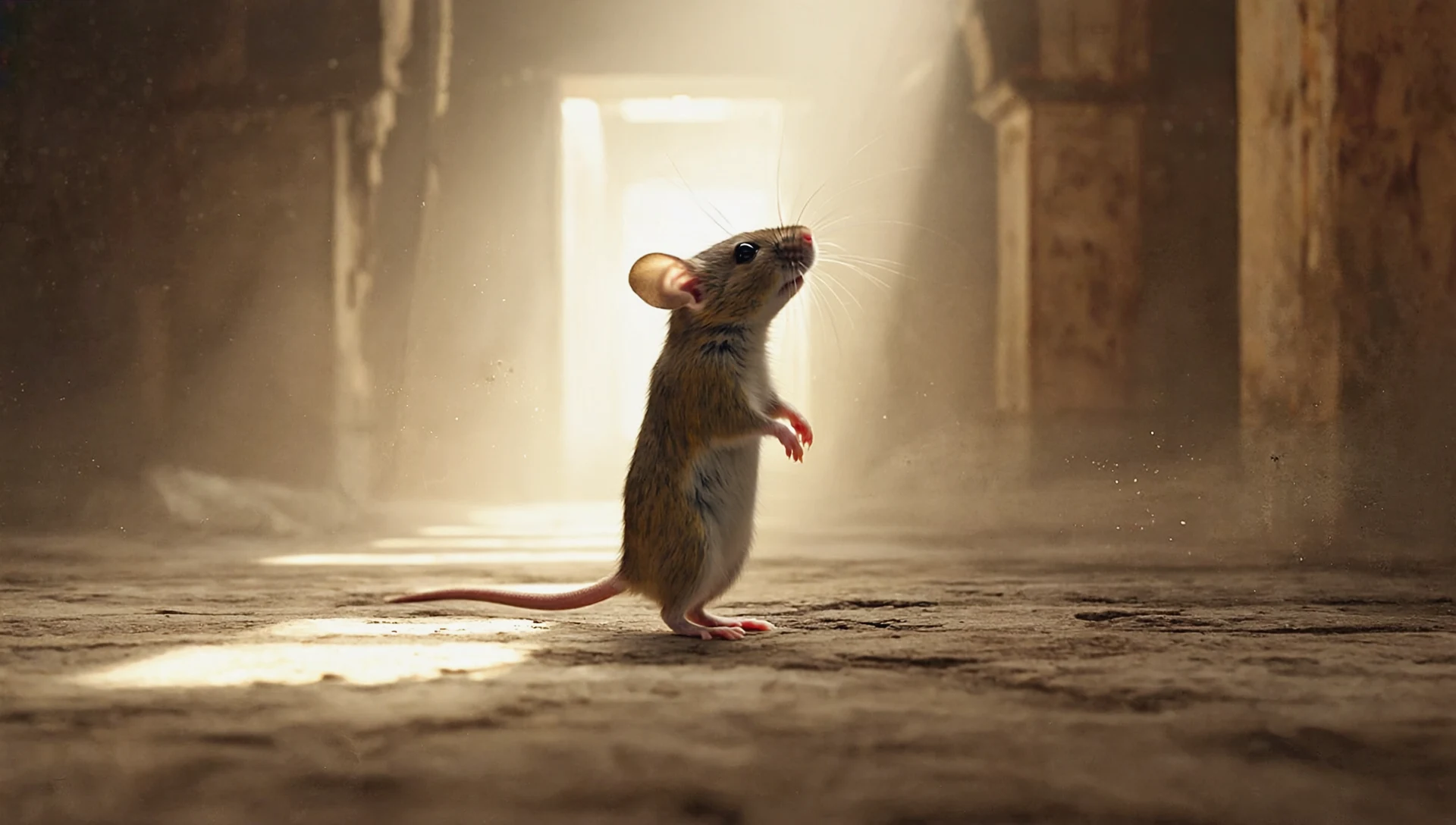
Handheld camera following a mouse

Input image

Starting frame for handheld camera following a mouse

Sample video

Reference from Runway · Source model: Gen-4. This sample was produced by the source; results in Visual Maker AI will differ.

Choose a clearly visible small animal with a readable floor or path around it.

the handheld camera tracks the mouse as it scurries away.

Try a variation: Replace handheld tracking with a steady low-angle follow shot.

Starting setup: Wan 3.0 Video · 16:9. Check resolution, duration and the credit quote in Generate.

Use this prompt
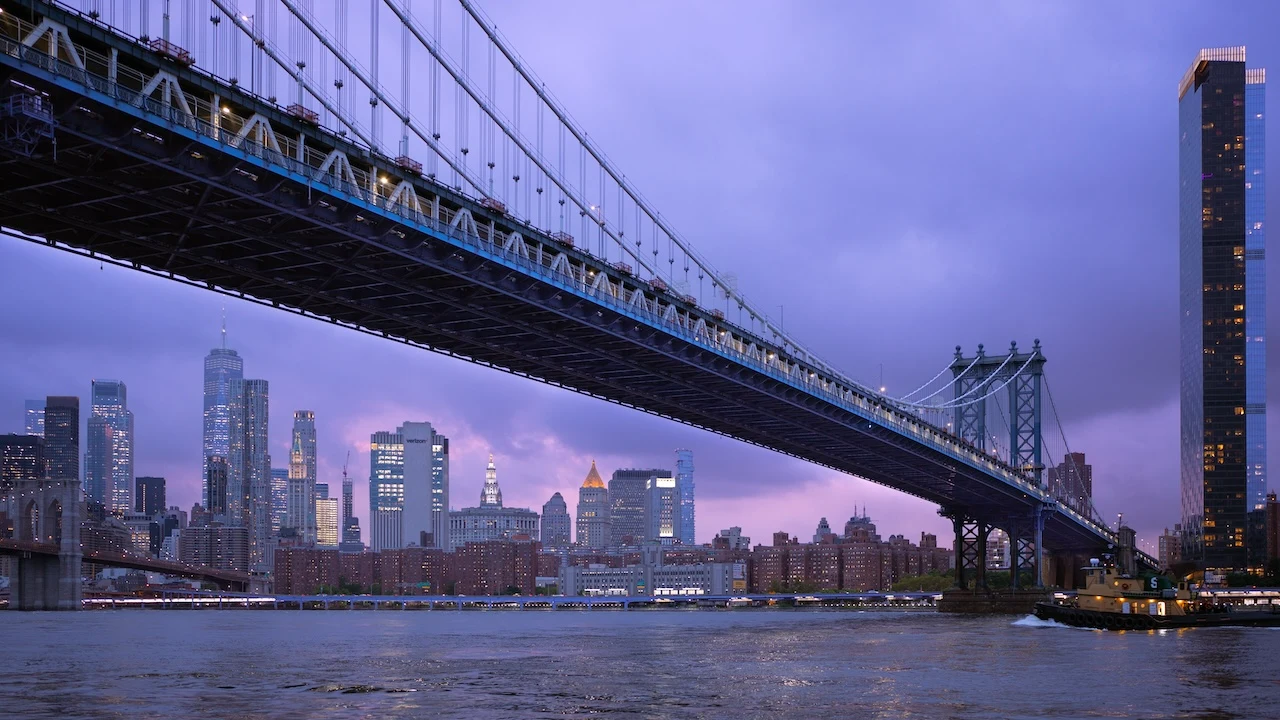
Large-scale scene transformation

Input image

Starting frame for large-scale scene transformation

Sample video

Reference from Runway · Source model: Gen-4. This sample was produced by the source; results in Visual Maker AI will differ.

Use an unobstructed wide view for a fictional visual-effects transformation.

The Brooklyn bridge gets on fire and collapses

Try a variation: For a calmer scene, direct an evening lighting change instead of structural motion.

Starting setup: Wan 3.0 Video · 16:9. Check resolution, duration and the credit quote in Generate.

Use this prompt
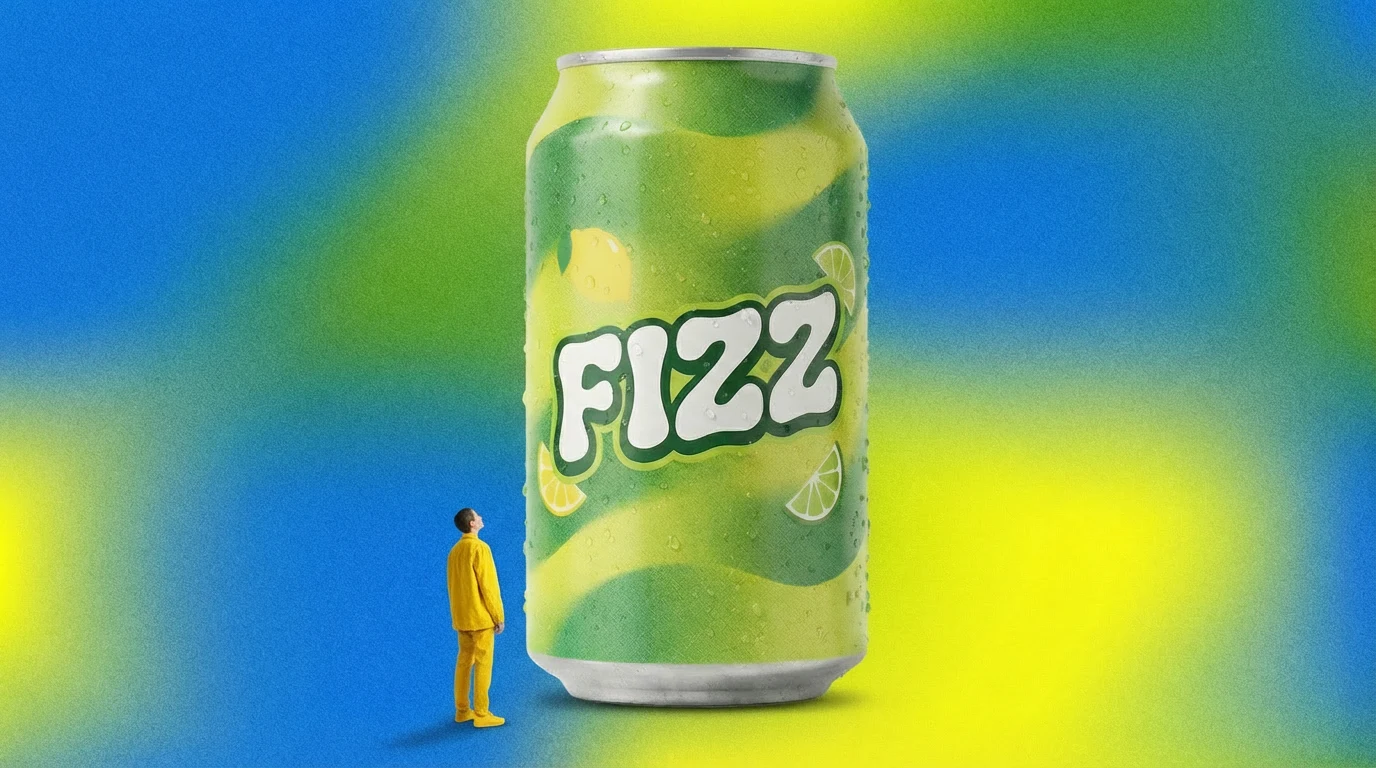
Slow push-in on a miniature climber

Input image

Starting frame for slow push-in on a miniature climber

Sample video

Reference from Runway · Source model: Gen-4.5. This sample was produced by the source; results in Visual Maker AI will differ.

Use an image that already establishes the miniature person and oversized object.

The camera slowly pushes in as the person scales the giant soda.

Try a variation: Keep the climbing action and change only the speed of the push-in.

Starting setup: Wan 3.0 Video · 16:9. Check resolution, duration and the credit quote in Generate.

Use this prompt

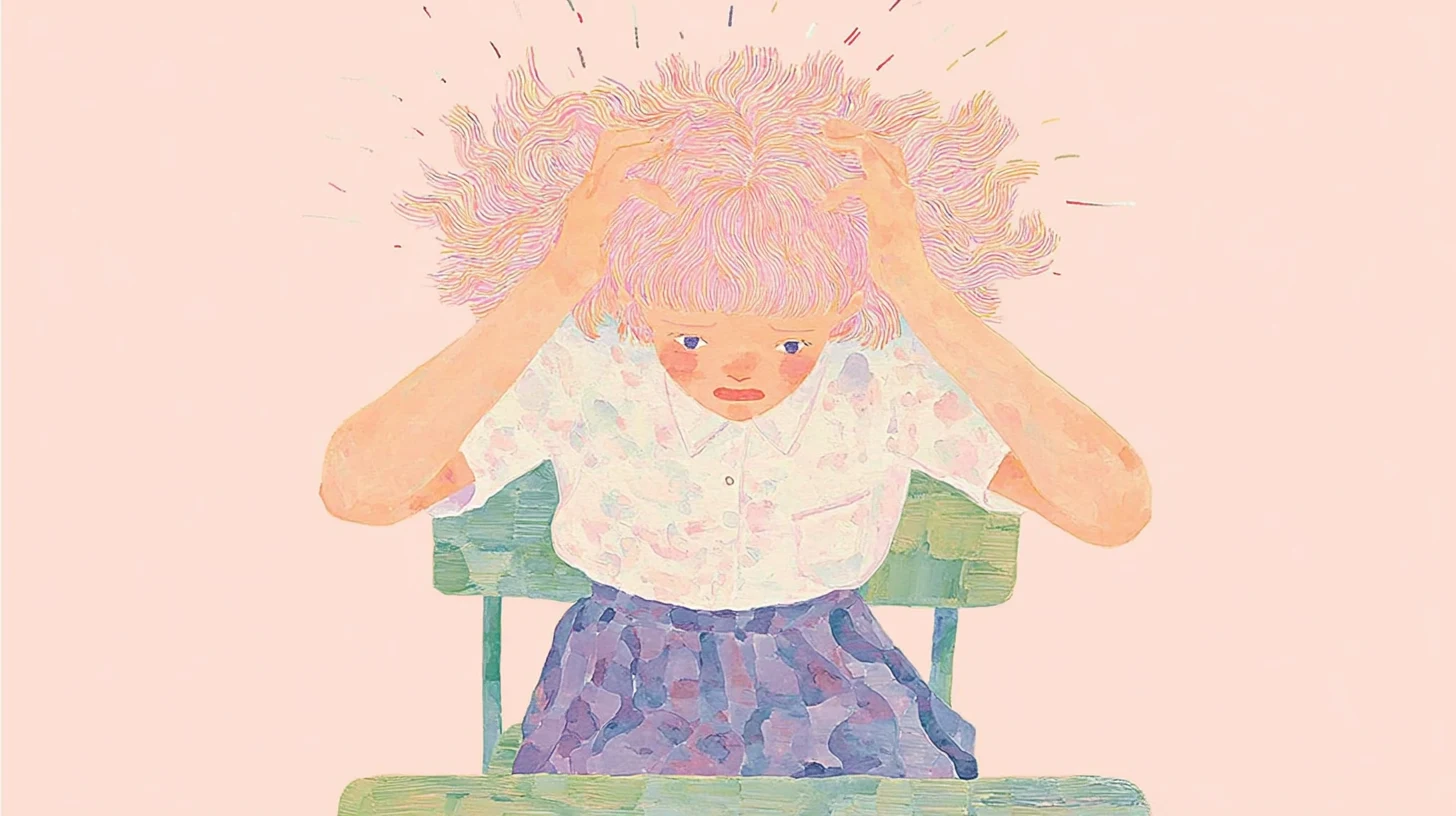
Watercolor character reaction

Input image

Starting frame for watercolor character reaction

Sample video

Reference from Runway · Source model: Seedance 2.0. This sample was produced by the source; results in Visual Maker AI will differ.

Upload an original illustrated character with a clear expression and established art style.

multishot video. the woman realizes that she forgot there was a test that day. watercolor animation style

Try a variation: Try a single reaction shot before requesting a multi-shot sequence.

Starting setup: Wan 3.0 Video · 16:9. Check resolution, duration and the credit quote in Generate.

Use this prompt

Let the image establish the look; use words to direct motion

Pick a starting image that already contains the subject, lighting and composition you want. A prompt cannot reliably recover a hidden hand or a blurred face. Describe the movement that should happen next, keeping the first attempt to one subject action and a clear camera direction.

For example, a food photograph already establishes the bowl, table and colors. A useful motion instruction adds slow rising steam and a locked camera. After reviewing that version, try a subtle push-in rather than changing the food, lighting and camera together.

Each example pairs a source-provided image and prompt with its published video. Source models are identified where disclosed. “Use this prompt” opens Wan 3.0 Video here; upload your own image and review its settings to make a new interpretation.

How to use an image-to-video prompt

  1. Choose and prepare your image. Use a sharp photo or illustration you have permission to animate. Crop it to the intended frame before upload and leave room around moving parts.
  2. Open a template and upload the source. “Use this prompt” fills the text, model, input mode and framing. It does not upload an image or start generation. Select the required image in Generate.
  3. Review the settings and cost. Choose a supported duration and resolution, then check the current credit quote. Begin with a short shot so you can evaluate the motion before making a longer version.
  4. Inspect and revise. Check faces, hands, labels and straight lines throughout the clip. Simplify the motion before adding another action, and change one instruction per attempt.

Troubleshooting image animation

Common animation problems and the next prompt change to try
What you seeWhat to try next
Face or product shape changesUse a sharper source, reduce rotation and ask for a smaller action. Try a locked camera before adding a move.
Camera moves too muchUse one clear instruction such as “locked camera” or “slow forward move.” Remove conflicting camera terms.
Shot becomes a different sceneRemove new objects and scene changes from the prompt. Request one continuous shot and animate what is visible.
The loop has a visible jumpReduce the movement and trim or blend the edit. A written return-to-start instruction alone cannot ensure matching frames.

Image-to-video prompt questions

What should an image-to-video prompt include?

Direct the visible subject’s action, camera behavior and pace. Add an environmental movement only when useful. Start small, then revise after checking the result.

Do I need an image as well as a prompt?

Yes. These links select image-to-video mode and require a starting image. If you want the model to invent the scene without an upload, choose a text-to-video template in the video prompt library.

Can I animate an old photograph?

You can try a sharp scan with a visible face and restrained motion. Restore severe blur or damage first. The video is a generated interpretation, not recovered footage of the original moment.

Which settings are filled by a template?

The link fills the full prompt, Wan 3.0 Video model, image-to-video input mode and aspect ratio. You upload the image and choose duration, resolution and other settings in Generate before reviewing the credit cost.

Can I use the same prompt with other models?

You can adapt the wording, but supported inputs and response to motion instructions vary. Review the selected model’s controls and evaluate a fresh result rather than expecting identical animation.